
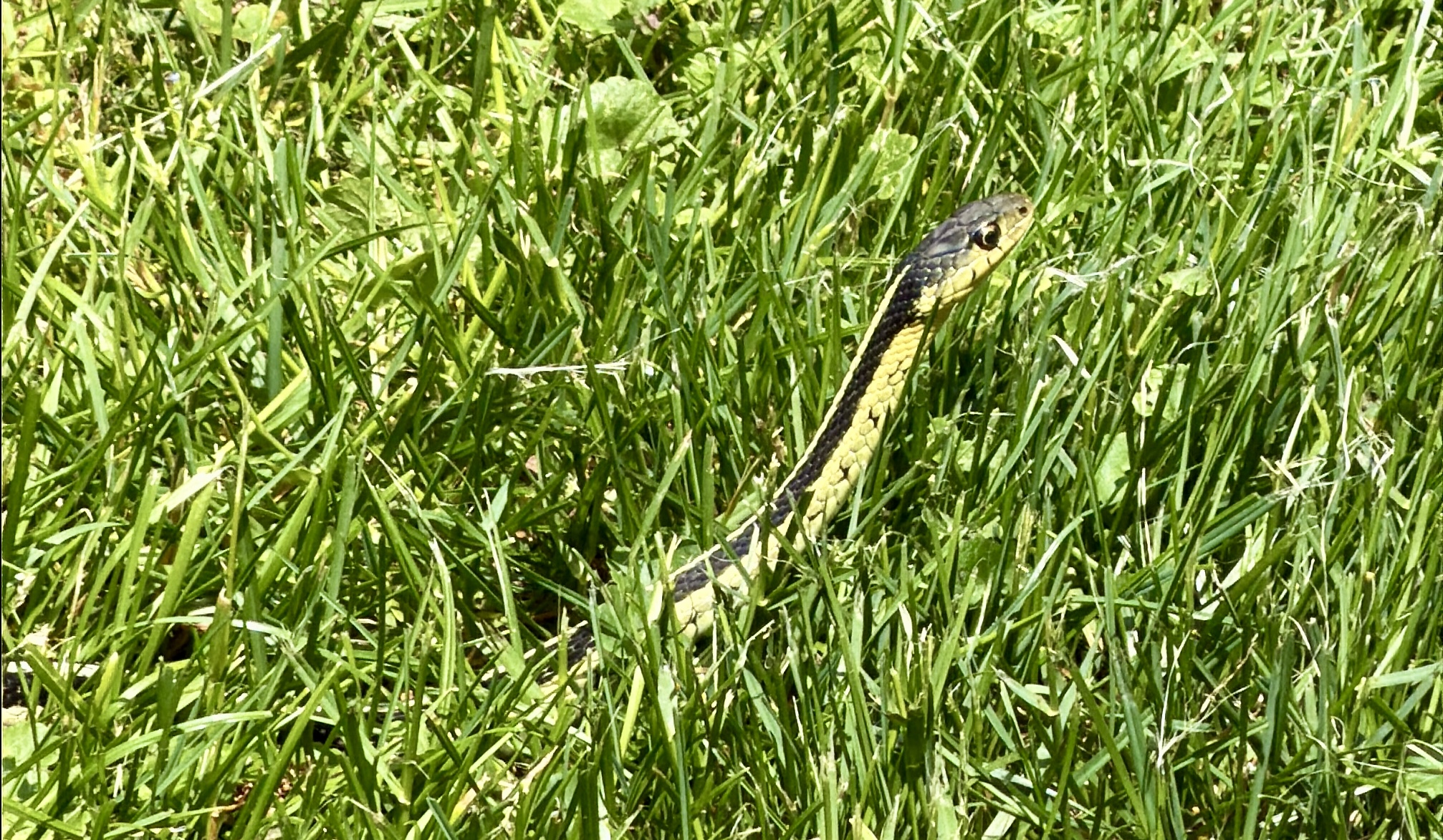
Have you ever tried to take a picture of a bird, a snake, a kid, your friend doing something ridiculous, or even yourself… only to realize you captured the exact moment someone blinked, looked away, or made a face that belongs in a horror movie? Welcome to the wonderful world of Burst Mode!
This post may contain affiliate links. If you use these links to purchase something I may earn a small commission at no cost to you. You can read my full disclaimer here.
Burst Mode lets your iPhone take a rapid series of photos so you can pick the best shot later instead of hoping you timed it perfectly.
How to Use Burst Mode
- Open your iPhone Camera.
- Press and swipe the Shutter button to the left.
- Keep your finger on the button as long as you want to keep shooting.
- Lift your finger to stop.
And yes… if you hold it down for a while, be prepared for approximately 7,482 photos. Okay, maybe not that many, but it sure feels like it when you’re scrolling through them later.
Don’t Forget This Important Step
Make sure Live Photos is turned OFF. Burst Mode and Live Photos don’t play nicely together, and this is something I still manage to mess up more often than I’d like to admit.
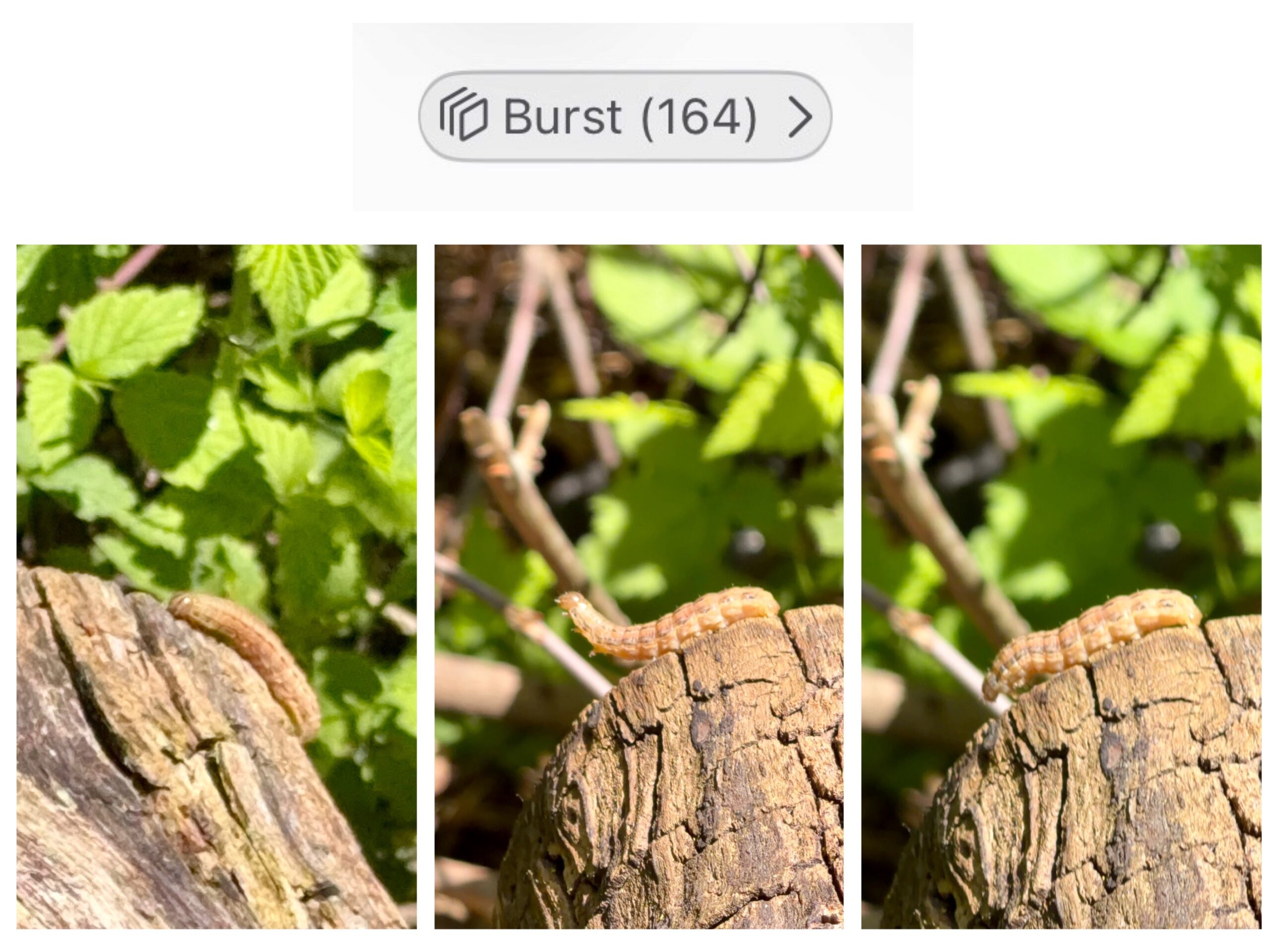
How to Choose the Photos You Want to Keep
After taking your burst:
- Tap the Burst thumbnail (upper right on my iPhone 17 Pro Max)
- Tap Select
- Tap the circle in the lower-right corner of each photo you want to save.
- Tap Done
If you decide the whole thing was a disaster (it happens), tap the Burst thumbnail and hit the Delete button.
Why I Love Burst Mode
Burst Mode is perfect for anything active or constantly changing.
Every thing from wildlife and nature photography, pets being adorable and uncooperative, kids running around, city photography with moving cars and people, action shots, travel adventures, selfies when your expression changes every half second like mine.
Instead of taking one photo, checking it, and trying again, Burst Mode lets you keep shooting without stopping. You can sort through the images later and find the one that captures the exact moment you wanted.
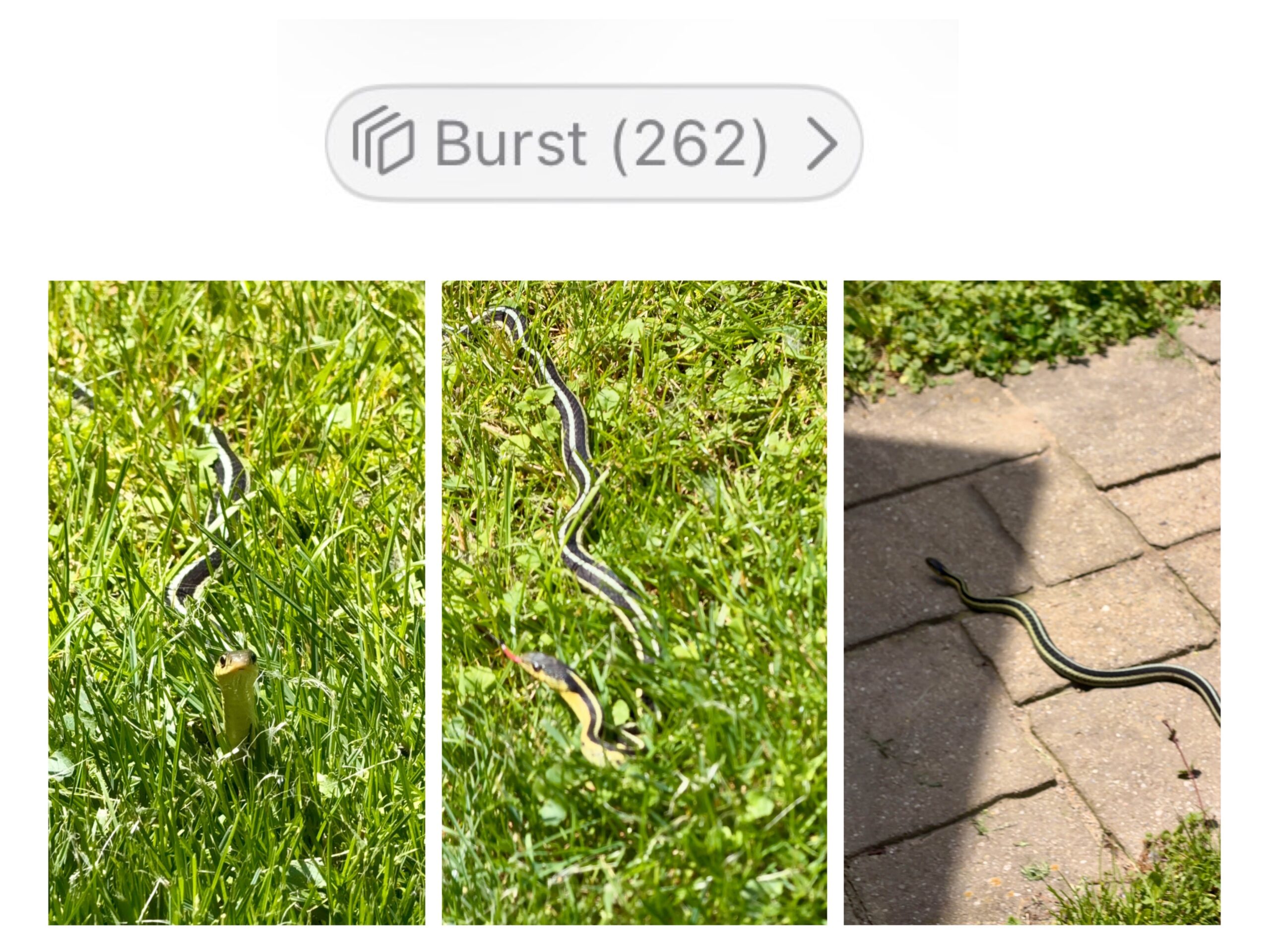
Apple Watch Users—You’re Covered Too
Yes, you can use your Apple Watch with Burst Mode. If you’re taking selfies or group photos, it’s a fantastic option because you can trigger the camera remotely and capture multiple shots.
Just remember: Turn Live Photos OFF first if you want to use Burst Mode with your Apple Watch. Trust me. Save yourself the “Why isn’t this working?” conversation with your phone.
Final Thought
If you’ve never tried Burst Mode, give it a shot this week. Whether you’re photographing wildlife, city life, your travels, your pets, or your own ever-changing facial expressions, Burst Mode dramatically increases your chances of getting the photo you actually wanted instead of the one that makes everyone ask, “What happened to your face?”
———————-
I am a spirited Country/Hillbilly/Ghetto/City girl blogger from Chelsea, MI who thrives on adventure, creativity and exploring the world through the lens of my camera (even if it’s my phone). When I’m not chasing sunsets and amazing views, I spend time with my heart dog Maizie. If travel, creativity and a dash of blunt honesty (with the occasional F-bomb) sparks your curiosity, you are in the right place. ~ Stressie Flavis