


You know those travel photos where it looks like someone magically followed a person around taking all their pictures? Yeah…sometimes it’s just an iPhone, a tripod, and a tiny little remote shutter doing the heavy lifting while the person awkwardly poses in public pretending they’re not being judged.
This post may contain affiliate links. If you use these links to purchase something I may earn a small commission at no cost to you. You can read my full disclaimer here.
Today we’re talking about using a remote shutter with your iPhone camera. And honestly? This little trick makes life SO much easier for travel pics, selfies, pet photos, group shots, and content creation.
Option 1 – Use the Volume Button on Your iPhone
A lot of people still don’t realize this…your iPhone volume buttons can take pictures. Yep. No awkward stabbing at the screen while trying not to drop your phone into a river.
Just open the Camera app and press either volume button to snap the photo. This works great when you’re trying to keep the phone steady….and you don’t want blurry photos from tapping the screen.

Option 2 – Use Your Apple Watch
If you have an Apple Watch, you can use it as a remote shutter for your iPhone camera. This is honestly one of the coolest little travel hacks. You can: Set up your shot, walk away from the phone, then tap your watch to take the picture.
The watch even lets you preview the shot before taking it. Which is helpful because sometimes you think you look cute until you realize your hair is trying to escape into another dimension.
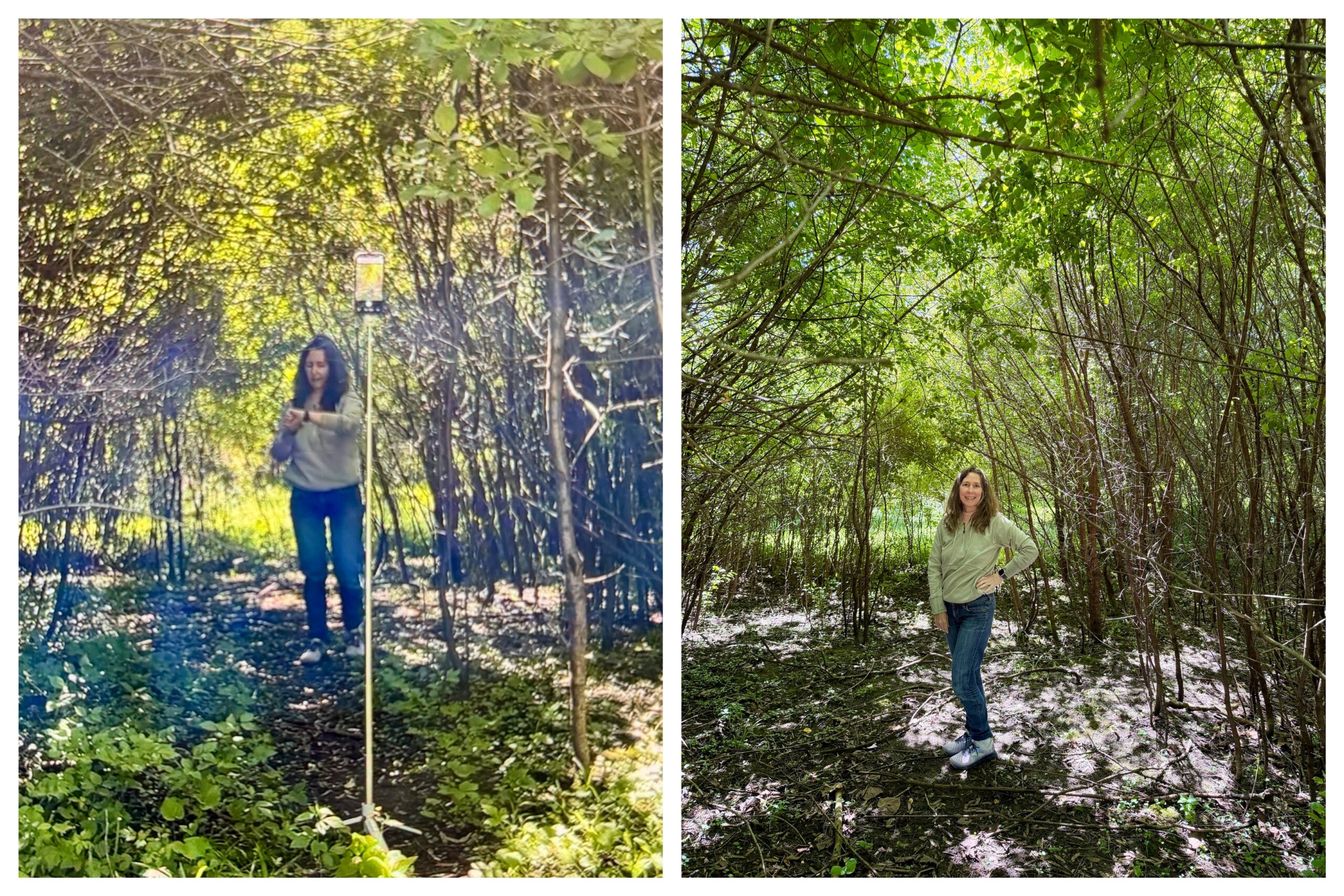
Option 3 – Use a Chargeable Remote
I use a travel tripod for my phone that came with: A magnetic ring so the phone easily attaches, chargeable remote shutter, tripod legs and a Selfie stick option.
You can set the phone up almost anywhere, click the remote, and boom — travel photos without asking strangers to take pictures that somehow cut off half your body and include their thumb in the frame.
It’s also great for family pictures, pet photos, content creation, selfies, reels and videos. And…“I drove three hours and deserve proof I was here” moments.

Don’t Forget the Timer Feature
Another thing people forget about? The built-in camera timer (I think from IPhone 11 and above). This is what I used so that I could pose without my hand being my watch or remote in the pics. On the iPhone camera you can choose Immediate photo, 3-second timer, 5-second timer, or 10-second timer.
The 3-second timer typically what I use and is AMAZING for reducing camera shake and giving yourself enough time to stop looking like you just sprinted into the frame.
Why This Tip Matters
A remote shutter seriously changes the game for travel and creative photos.
You no longer have to: Hand your phone to random people, balance your phone against a coffee cup and pray, run like a lunatic trying to beat the timer, end up missing from your own adventures.
Plus…sometimes taking your own damn pictures feels empowering. Even if you’re standing in the middle of nowhere talking to your phone tripod like it’s part of the family. And honestly? That sounds about right for my life these days.
———————-
I am a spirited Country/Hillbilly/Ghetto/City girl blogger from Chelsea, MI who thrives on adventure, creativity and exploring the world through the lens of my camera (even if it’s my phone). When I’m not chasing sunsets and amazing views, I spend time with my heart dog Maizie. If travel, creativity and a dash of blunt honesty (with the occasional F-bomb) sparks your curiosity, you are in the right place. ~ Stressie Flavis